
Securing online services from possible attacks is one of the key roles in modern IT teams.
Helping Office 365 users recognize external emails by the added warning message is a quick improvement that you do.
Microsoft 365 by design offers security features that help to defend Office 365 users from possible cyber attacks. Protecting your critical data stored in Office 365 applications should be a highly important task for Office 365 business owners and IT departments.

You can implement multiple security solutions that will help to reduce the risk of cyber-attacks and leaks of your data. One of the quickest solutions is enabling Multi-Factor Authentication in Office 365. There is a more quick configuration you can implement to improve the security level of your Office 365 tenant and prevent possible phishing and other cyber attacks.
What phishing and email spoofing is?
One of the most popular cyber-attack is phishing based on spoofing of email addresses. Email spoofing is a phishing attack that focuses to trick users that the sender of the email is legitimate. Attacking person using very similar email address and format of the email content to convinces receiver to leak some data or information. It could tricky email from a CEO that asks you immediately sent finance results or important reports. Attackers sent that kind of email to large groups of users to increase the probability of the human mistake that will lead to data leak.
Office 365 by default has implemented an anti-phishing policy that using automated mechanisms to recognize phishing emails and move them to the Junk folder in the email box. You can manage it in the Microsoft 365 security anti-phishing default policy.

You can extend this feature by adding an additional warning message automatically added to all external emails in Office 365. You are able to configure external warning message in Exchange Online in two minutes.
How to add external sender email warning message in Office 365?
Exchange Online allows you to configure external sender warning message for emails in Office 365. This is a very simple feature that increases the awareness of end-users about the fact the sender is external. That kind of simple information could secure you for phishing attacks based on email spoofing.
To configure email external sender warning message you will need open Microsoft 365 admin center.
1. Open Exchange Online admin center and go to Mail flow (1), Rules (2) and Apply disclaimers (3).

In the new form, you can configure a new rule that will add a warning message to emails. Set the Name (1) – External message warning. In the field Apply this rule if choose The sender is located (2) – Outside the organization and in the Do the following field select Append the disclaimer (3). In the last step set the HTML code in the 4th field and select Wrap (5).
In the following part of the article, you will find examples of the warning messages.
An appended warning message will be delivered at the end of the email message.

A prepended warning message will be delivered at the beginning of the email message. To get the possibility to add the warning message in prepend of the email using the More actions button.

Warning messages in email content will warn Outlook users from possible phishing attacks.
How to add external sender warning in email title/subject in Exchange Online?
Another good way to warn your users about the external sender of the email is to add [EXTERNAL] or [EXT] warning to the email titile in Exchange Online. This is less invasive method to create the warning message in Outlook for Office 365 users.
To configure an external sender warning in an email titile you will need to open Microsoft 365 admin center.
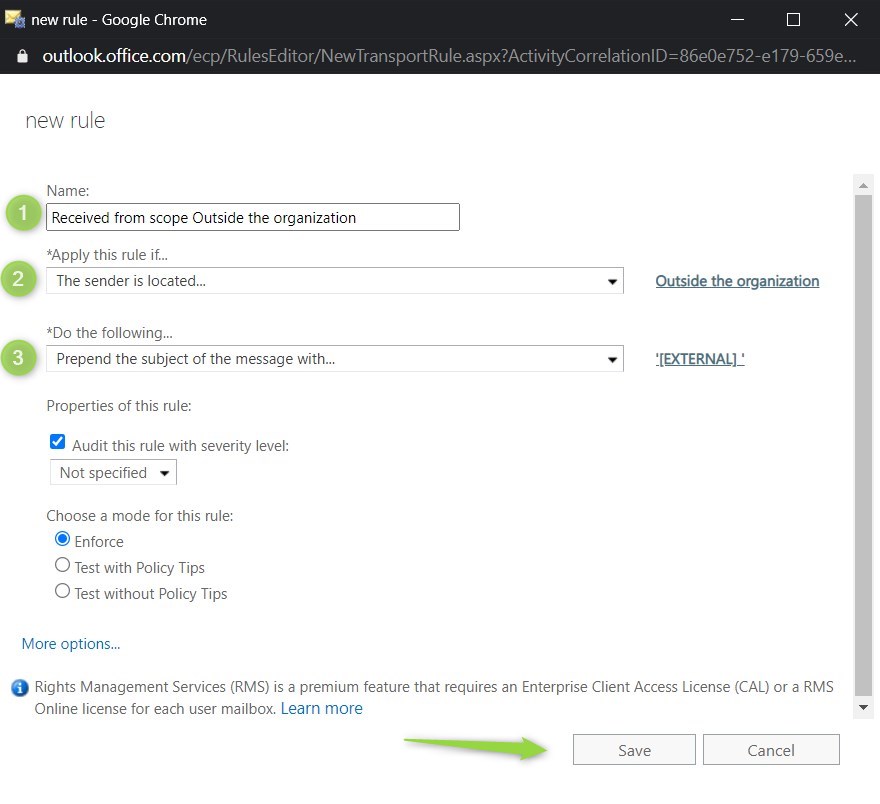
1. Open Exchange Online admin center and go to Mail flow (1), Rules (2) and Prepend the subject of the message with (3).
It is also possible to extend the message title for an additional statement like “[EXTRENAL] ” which could be additional help for business users.
As a result, all Office 365 emails from external senders will have added warning in the email title and additional warning message in the email content.

This kind of warning solution will secure your users from phishing attacks.
Examples of external email warnings for Office 365
Below you will find warning examples for external senders in Office 365.
Example #1 – external sender warning – Download
“CAUTION: This email originated from outside of the organization. Do not click links or open attachments unless you recognize the sender and know the content is safe.”

Example #2 – external sender warning – Download
“WARNING – This email is originated from UNTRUSTED SOURCE. Do not click any link and do not open attachments unless you can confirm the sender.
PLEASE REPORT SUSPICIOUS EMAILS TO: PHISHING@CONTOSO.COM”

Example #3 – external sender warning – Download

“IMPORTANT! – This email is originated from UNTRUSTED SOURCE. Do not click any link and do not open attachments unless you can confirm the sender.”
Conclusion
Office 365 allows you to add Exchange Online warning messages for external sender emails. Use examples of the warning messages to help your Microsoft users.
EXTRENAL
It is also possible to extend the message title for an additional statement like “[EXTRENAL] ” which could be additional help for business users.
This is a really good point! I will update the article to cover that. Thanks 👍
Thanks for the great guide! Is it also possible to display the real sender of the e-mail in the warning? And possibly other information, such as server name etc?
I believe no by design using native rules in Exchange :/
One of the best, easy to understand videos I’ve seen in along time. As a bonus, very friendly voice/presentation!
Thanks 👍
Hi ! I like the idea of a warning but my problem is that the text gets embedden in the message and is visible to my customers when I reply to their mail.
Since the text is on top of the email it also jams the preview in outlook
Would it be possible to create ar rule that generates a outlook message, pop up or some other “flag” on these emails. So that it dosent show inside the text. And I would like to apply this company wide.
Many organizations use warning messages only in the title of the email 😉
Another way is to use native external sender callouts in Exchange. To be fair is very elegant and not visible when you forwarding the email, but at the same time is is very easy to missed this notification.
– https://techcommunity.microsoft.com/t5/exchange-team-blog/native-external-sender-callouts-on-email-in-outlook/ba-p/2250098
Hi Szymon!
Thanks for great content. But we are looking for potential list of Microsoft related domains that we could whitelist. Do you know anything about that?
Unfortunately, even MS Teams or Planner notifications are tagged with this message. We do not intend to scary users that much 😉 This is what I have collected:
Quarantin: quarantine@messaging.microsoft.com
Panner: noreply@planner.office365.com
Yammer: notifications@yammer.com
Yammer: noreply@yammer.com
Microsoft Teams: noreply@email.teams.microsoft.com
I’m worried that you will need to maintain such a list. Too many new apps, changes happening in Microsoft 365.
Is there anyway that you could not add another RE: [External] from the Header.
For example: [External] Re: [External] Re: [External] Just Checking on you! <—
This is going back and forth with business email and personal email replying with each other or just manually remove [RE] but people does not look at the header after sending an email back and forth…
maybe there is a way, another rule?
Check native external warning: https://techcommunity.microsoft.com/t5/exchange-team-blog/native-external-sender-callouts-on-email-in-outlook/ba-p/2250098 or warning in the email content.
how to change a code to show a warning message below the whole email message?
Go to Exchange Admin Center -> Mail flow -> Rules -> Add rules -> Apply disclaimers -> “prepend a disclaimer”.
This should work.
Lifesaver thank you but I have question I have just done this and it works great however, the warning msg is displayed at the bottom of the emails any way to bring it to the top?