Academy Microsoft 365 atWork Blog

Microsoft Project Plan 1 vs 3 vs Plan 5 in Microsoft 365

⭐ PARTNER OF THE BLOG
Microsoft 365 atWork partners with AFI.AI, the developer of modern data protection platform built from the ground up to deliver a fully-fidelity backup for MICROSOFT 365 and GOOGLE WORKSPACE.

Microsoft Project as a part of Microsoft 365 offers possibility manager projects.

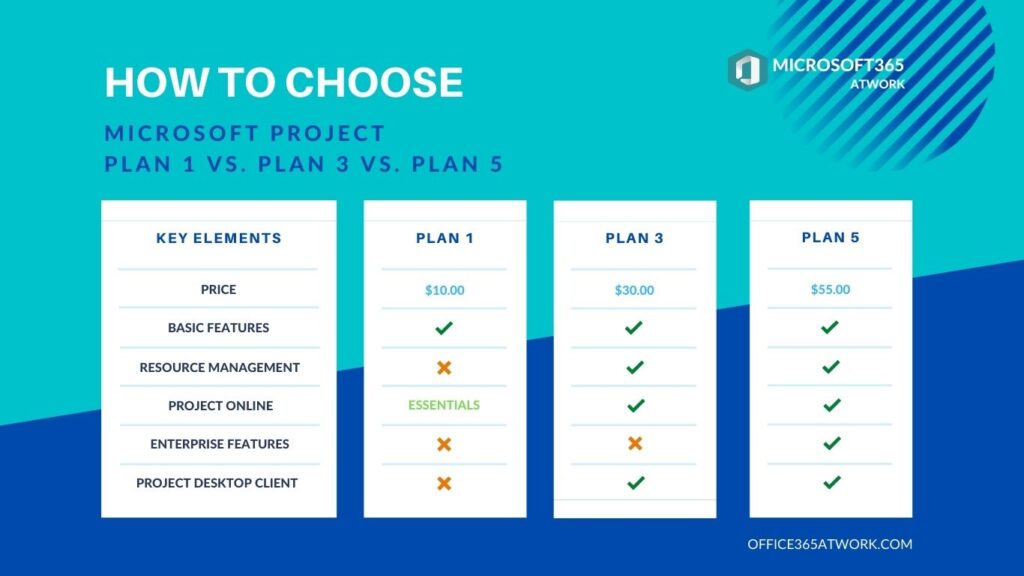
I prepared a comparison of the available Microsoft Projects plans. You will find a comparison of Microsoft Project Plan 1 vs. Plan 3 vs. Plan 5.

Get to know Microsoft Project plans and compare Project Plan 1 vs. Project Plan 3 vs. Project Plan 5

Understand better the main differences between Plan 1, Plan 3 and Plan 5 subscriptions and choose suitable plans for your needs. Choose the right Microsoft Project for your needs.

Microsoft Project Plan 1 vs 3 vs Plan 5 in Microsoft 365

PARTNER OF THE BLOG

Academy Microsoft 365 atWork partners with AFI.AI, the developer of a modern data protection platform built from the ground up to deliver a full-fidelity backup for MICROSOFT 365 and GOOGLE WORKSPACE.

Edit Template

🎯M365 & COPILOT WEEKLY DIGEST

Are you tired of missing out on the latest news, important announcements, insightful articles, and engaging videos? 

I’ve got the perfect solution for you!

Join my weekly newsletter where we gather the most crucial updates and deliver them straight to your inbox or LinkedIn feed, based on your preference.

SUBSCRIBE TO CHAMPIONS NEWSLETTER 

I respect your . Unsubscribe at any time.

Microsoft Project Plans differences and comparison

Microsoft Project as a part of Microsoft 365 gives access to enterprise-level project management based on Project Online platform, with multiple features helping to manage projects, resources, timesheets and more. Moreover, Project plans could include the Microsoft Project Desktop app dedicated to local work on your PC/Mac.

When you will need to choose the right Microsoft Project plan you should consider availability of the specific Project features and apps Online/Desktop.

Learn how to choose Microsoft Project Plan

Microsoft Project Plan 1 vs 3 vs Plan 5 in Microsoft 365
Microsoft Project Plans comparison

Microsoft Word, a part of Office 365, is a PDF editor that allows you to edit PDF files. You don’t need to buy or install any additional extensions. Word will be a PDF editor that you can use to edit PDF files in Office 365.

Microsoft Project Plan 1 – Basic Project app in the web

The basic setup of the Microsoft Project app is available on the web browser only.

Available Microsoft Project clients applications:

  • Project for the web
  • Project Online Essentials
Microsoft Project Plan 1 vs 3 vs Plan 5 in Microsoft 365
Project in the web

Basic Project features

Available Basic features for the Microsoft Project:

  • Project Home – Starting in a centralized view, create new projects easily, quickly access important, top-of-mind projects, or open projects most recently worked on.
  • Grid view – Plan and manage projects, using an ordered list of tasks.
  • Board view – Visually track project tasks for better workflow and status, using out-of-box and custom task boards.
  • Timeline (Gantt) view – Track and understand dates, assignments and the relationships of project tasks in visual timeline view.
  • Collaboration and communication – Work together on projects, using Microsoft Teams.
  • Coauthoring – Work together with stakeholders and team members to edit and update task lists, project schedules, and more simultaneously.
  • Project planning and scheduling – Includes familiar scheduling tools to assign project tasks to team members and use different views like Grid, Board, and Timeline (Gantt chart) to oversee the schedule.
  • Reporting – Use pre-built reports to track progress on your projects, resources, programs, and portfolios.
  • Timesheet submission – Capture project and nonproject time spent on payroll, invoicing, and other business task – Project Online Essentials
  • Roadmap – (Read-only access) – Build visual, interactive roadmaps by aggregating different project types across your organization for visibility.

Microsoft Lists vs. Microsoft Planner

Microsoft Project Plan 1 vs 3 vs Plan 5 in Microsoft 365

Microsoft Project Plan 3 – Basic Project with Desktop app

Fundamental plan for the Microsoft Project with Desktop app and Resource Management features.

Available Microsoft Project clients applications:

  • Project for the web
  • Project Online
  • Project Desktop Client – on up to 5  PC’s
Microsoft Project Plan 1 vs 3 vs Plan 5 in Microsoft 365
Project in Teams

Basic Project features

Available Basic features for the Microsoft Project:

    • Project Home – Starting in a centralized view, create new projects easily, quickly access important, top-of-mind projects, or open projects most recently worked on.
    • Grid view – Plan and manage projects, using an ordered list of tasks.
    • Board view – Visually track project tasks for better workflow and status, using out-of-box and custom task boards.
    • Timeline (Gantt) view – Track and understand dates, assignments and the relationships of project tasks in visual timeline view.
    • Collaboration and communication – Work together on projects, using Microsoft Teams.
    • Coauthoring – Work together with stakeholders and team members to edit and update task lists, project schedules, and more simultaneously.
    • Project planning and scheduling – Includes familiar scheduling tools to assign project tasks to team members and use different views like Grid, Board, and Timeline (Gantt chart) to oversee the schedule.
    • Reporting – Use pre-built reports to track progress on your projects, resources, programs, and portfolios.
    • Timesheet submission – Capture project and nonproject time spent on payroll, invoicing, and other business task
    • Roadmap –  – Build visual, interactive roadmaps by aggregating different project types across your organization for visibility.

Resource management features

Available Resource Management features for the Microsoft Project:

  • Resource management – Define the project team, request resources for the project, and assign project tasks to those resources.

Microsoft Project Plan 5 – Enterprise Microsoft Project

Enterprise version of the Microsoft Project with Desktop app and all available features.

Available Microsoft Project clients applications:

  • Project for the web
  • Project Online
  • Project Desktop Client – on up to 5  PC’s
Microsoft Project Plan 1 vs 3 vs Plan 5 in Microsoft 365
Microsoft Project

Basic Project features

Available Basic features for the Microsoft Project:

    • Project Home – Starting in a centralized view, create new projects easily, quickly access important, top-of-mind projects, or open projects most recently worked on.
    • Grid view – Plan and manage projects, using an ordered list of tasks.
    • Board view – Visually track project tasks for better workflow and status, using out-of-box and custom task boards.
    • Timeline (Gantt) view – Track and understand dates, assignments and the relationships of project tasks in visual timeline view.
    • Collaboration and communication – Work together on projects, using Microsoft Teams.
    • Coauthoring – Work together with stakeholders and team members to edit and update task lists, project schedules, and more simultaneously.
    • Project planning and scheduling – Includes familiar scheduling tools to assign project tasks to team members and use different views like Grid, Board, and Timeline (Gantt chart) to oversee the schedule.
    • Reporting – Use pre-built reports to track progress on your projects, resources, programs, and portfolios.
    • Timesheet submission – Capture project and nonproject time spent on payroll, invoicing, and other business task
    • Roadmap –  – Build visual, interactive roadmaps by aggregating different project types across your organization for visibility.

Resource management features

Available Resource Management features for the Microsoft Project:

  • Resource management – Define the project team, request resources for the project, and assign project tasks to those resources.

Enterprise features

Available Enterprise features for the Microsoft Project:

  • Portfolio selection and optimization – Model different portfolio scenarios to determine the best path by weighing project proposals against strategic business drivers.
  • Demand management – Capture and evaluate project ideas from anywhere in the organization through a standardized process.
  • Enterprise resource planning and management – View and compare how resources are used across projects to optimize assignments.

Planner in Microsoft 365 Apps

Microsoft Project Plan 1 vs 3 vs Plan 5 in Microsoft 365

Price difference between Project Plan 1 vs. Project Plan 3 vs. Project Plan 5

The cheapest Microsoft Project subscription is Plan 1, which costs around $10.00 per month/user. More complex plans: Plan 3 costs $30.00 per month/user, and Plan 5 costs $55.00 per month/user.

Maybe I can test the Microsoft Project

Microsoft 365 plans are not free, but … you can start with the 30 days trial subscription. In the case of Microsoft Project plans you can try them for the 30 days for 25 user.

Microsoft Project Trial licenses:

Contact with Microsoft MVP

Contact and book a 30-minute call with a Microsoft MVP.

Name
Use your organization email.
How can I help you?

Do you need help?

Contact and book a free consultation call with a Microsoft MVP. During a meeting, I will do my best to share my advice to help with your needs and challenges. 

Microsoft Project Plan 1 vs 3 vs Plan 5 in Microsoft 365
Edit Template

Conclusion

Compare Microsoft Project Plan 1 vs. Plan 3 vs. Plan 5 plans. Learn about the main differences between Microsoft Project Plan 1, Plan 3 and Plan 5.

Interesting articles for you

Edit Template
Edit Template
Edit Template

Leave a Comment

Your email address will not be published. Required fields are marked *

Scroll to Top